








Client portal · Companion plan
One click gives every client a portal. They never feel lost again.
The Kaizen client portal is a private, branded page for each client, created with a single click and sent by link or email. The client sets their own password, and from then on their projects, invoices, contracts, proposals and questionnaires are all in one place, kept up to date automatically. Switch on file uploads and they can send you everything the job needs too, straight into your own Google Drive.

The feeling you are actually selling
A client without a portal is a client who does not know what is happening. They do not know if the invoice arrived. They do not know if the contract needs a second look. They do not know if the project is on track or quietly behind, so they ask, and asking makes them feel like a nuisance, and feeling like a nuisance is not what anyone is paying you for.
A portal fixes the feeling, not just the information. The client opens one link and can see exactly where things stand, whenever they want, without writing an email that starts with “sorry to chase.”
One click
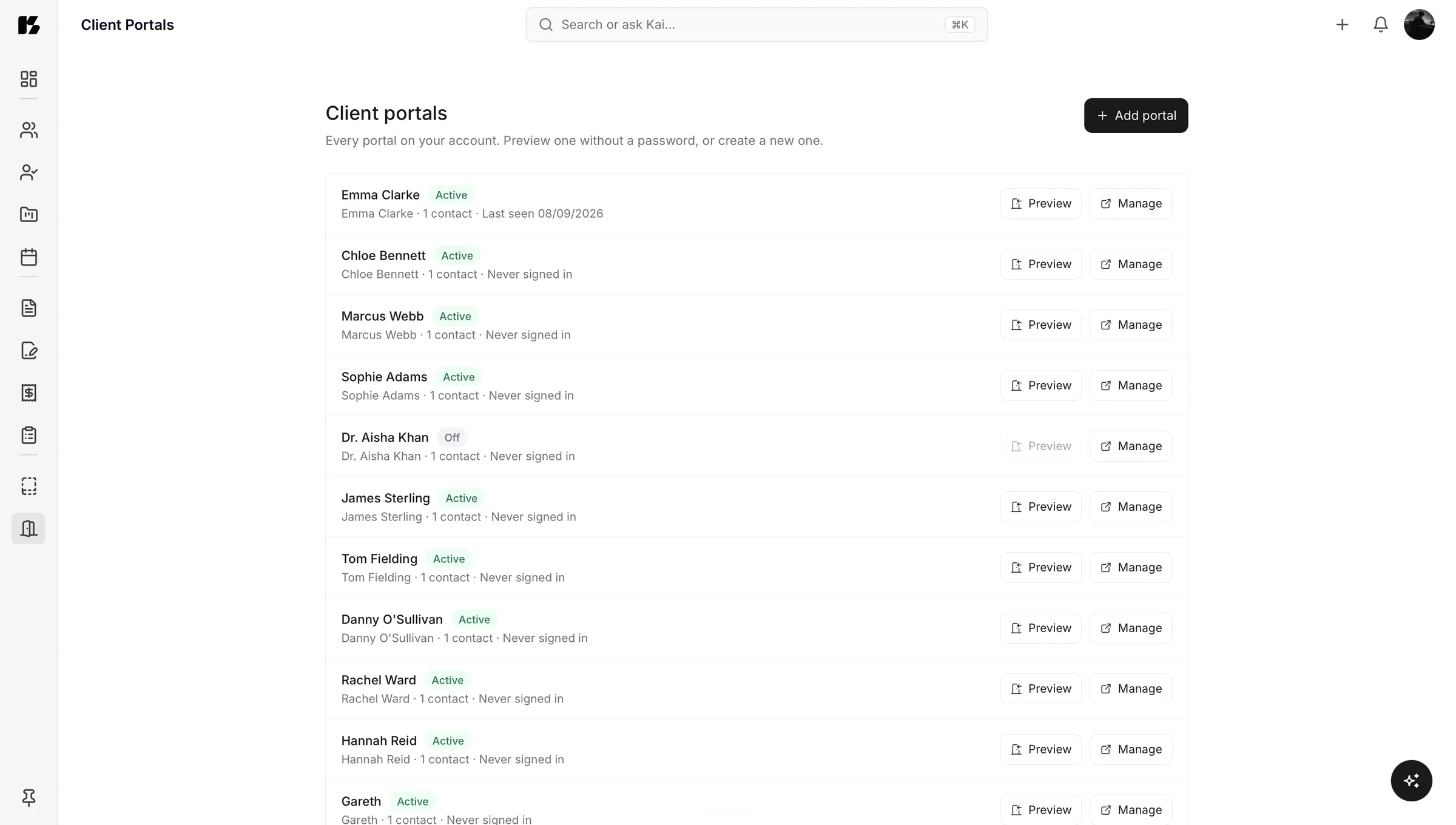
Setting one up takes one click
Create a portal from a client's record, and send it by link or by email. The client sets their own password when they first open it. No account for you to configure on their behalf, no password to invent and hand over.
Once it exists, you do nothing further to keep it current. Everything appears automatically.
For your client
What your client can do
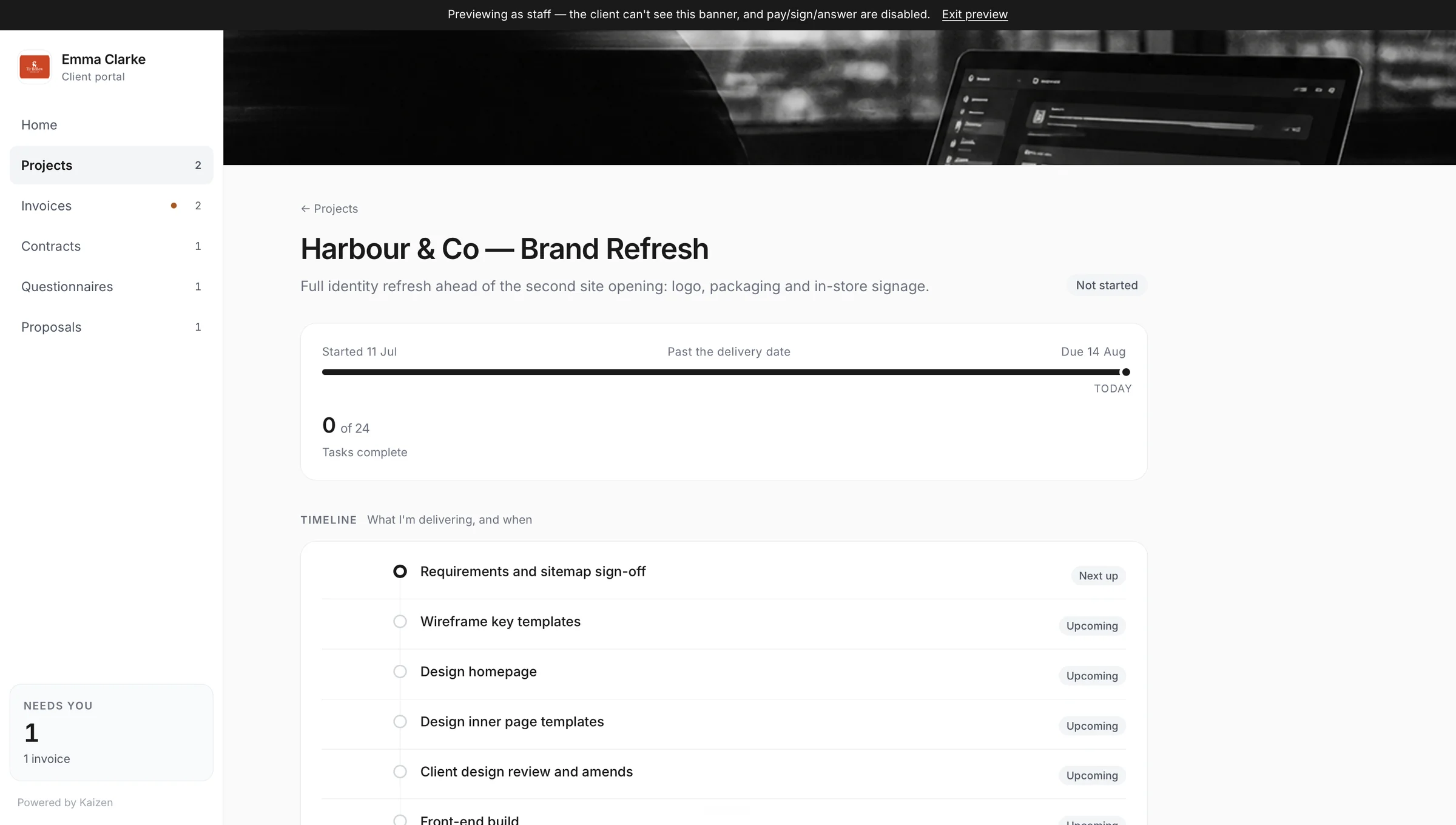
See their projects unfold
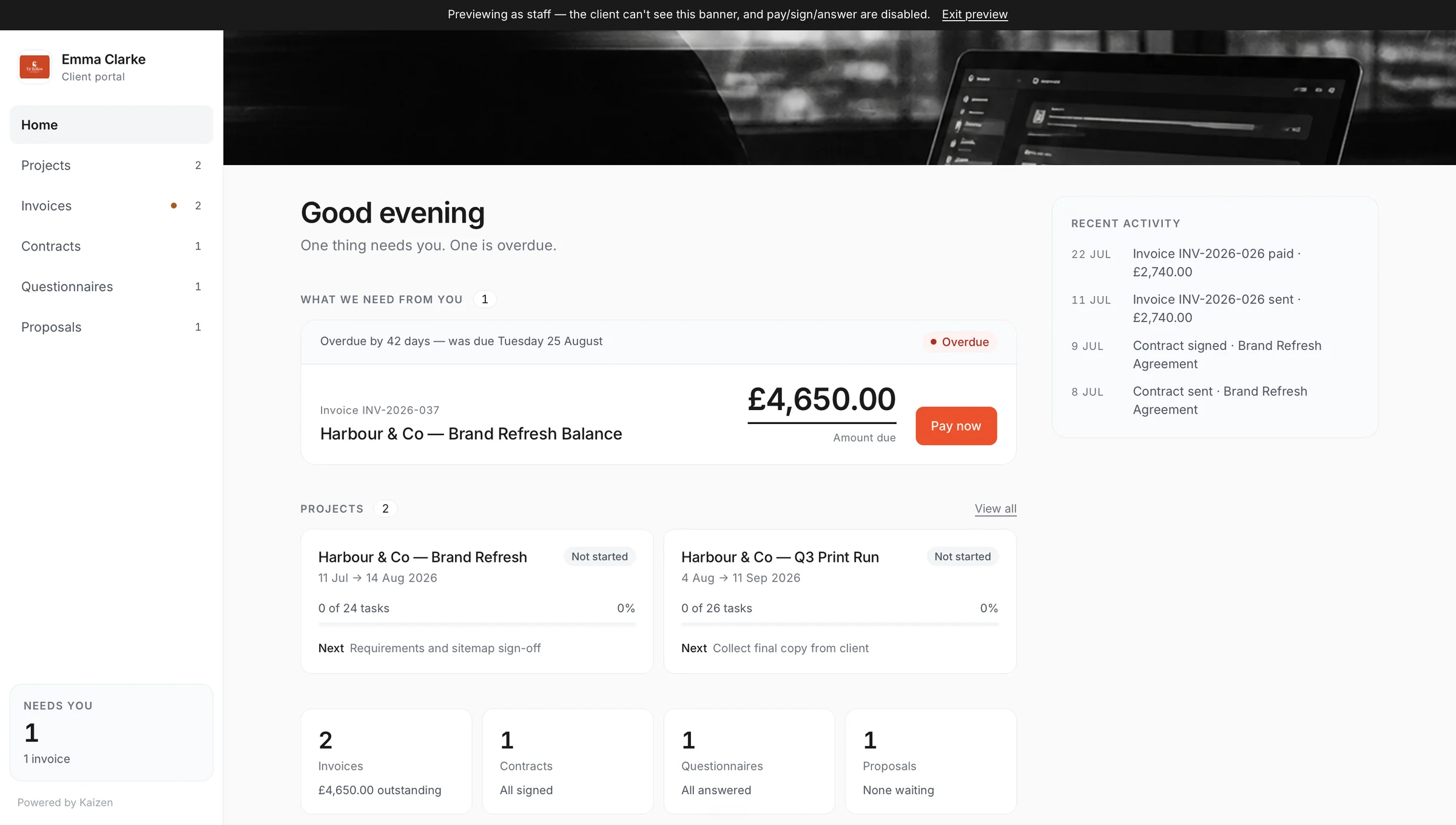
Every project assigned to them shows a progress list, so they can see exactly how the work is moving without asking you.
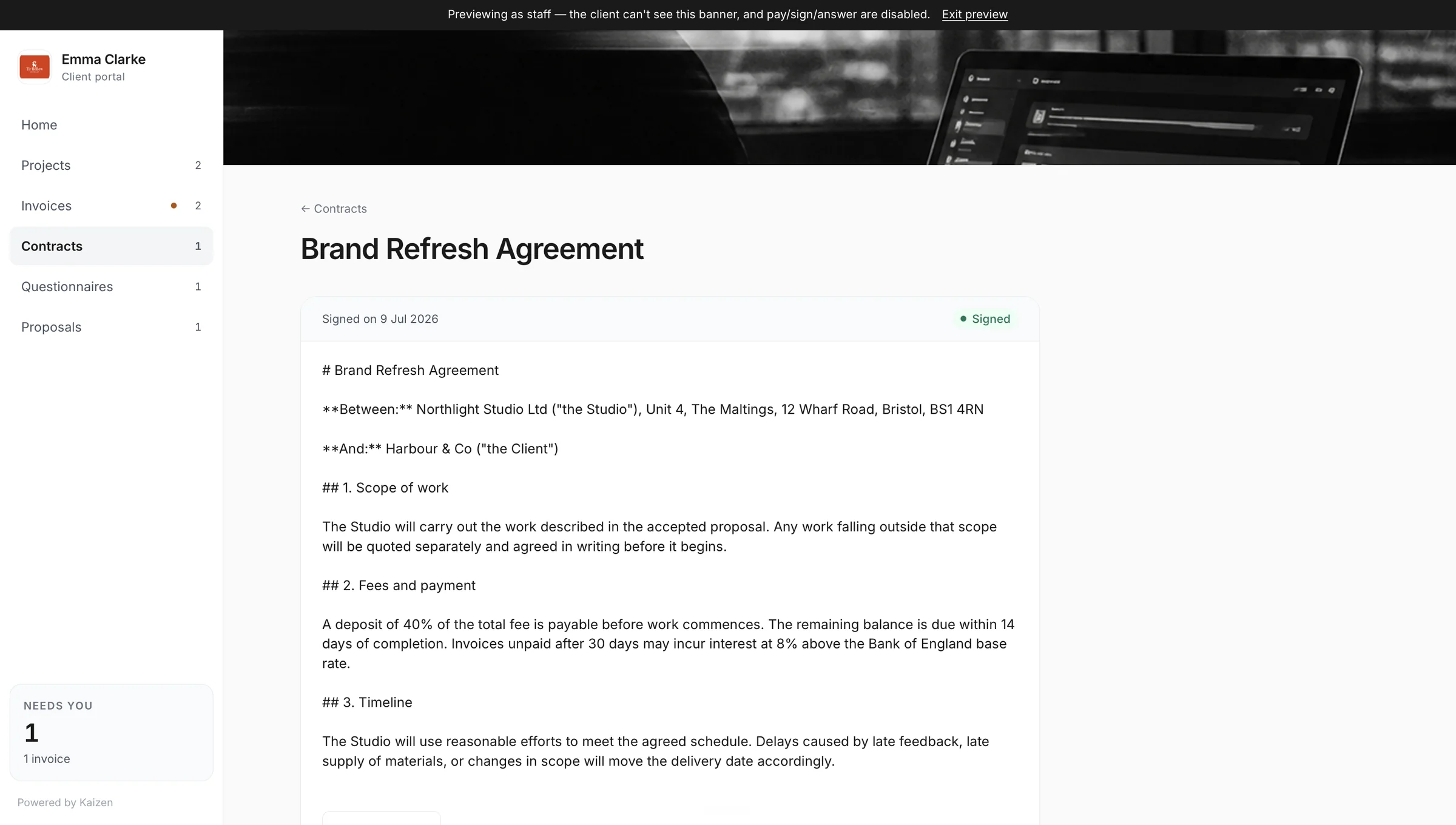
View, download and sign contracts
Contracts appear once they are out for signature. Your client can read it, download a copy for their own records, and sign it, all from the portal.
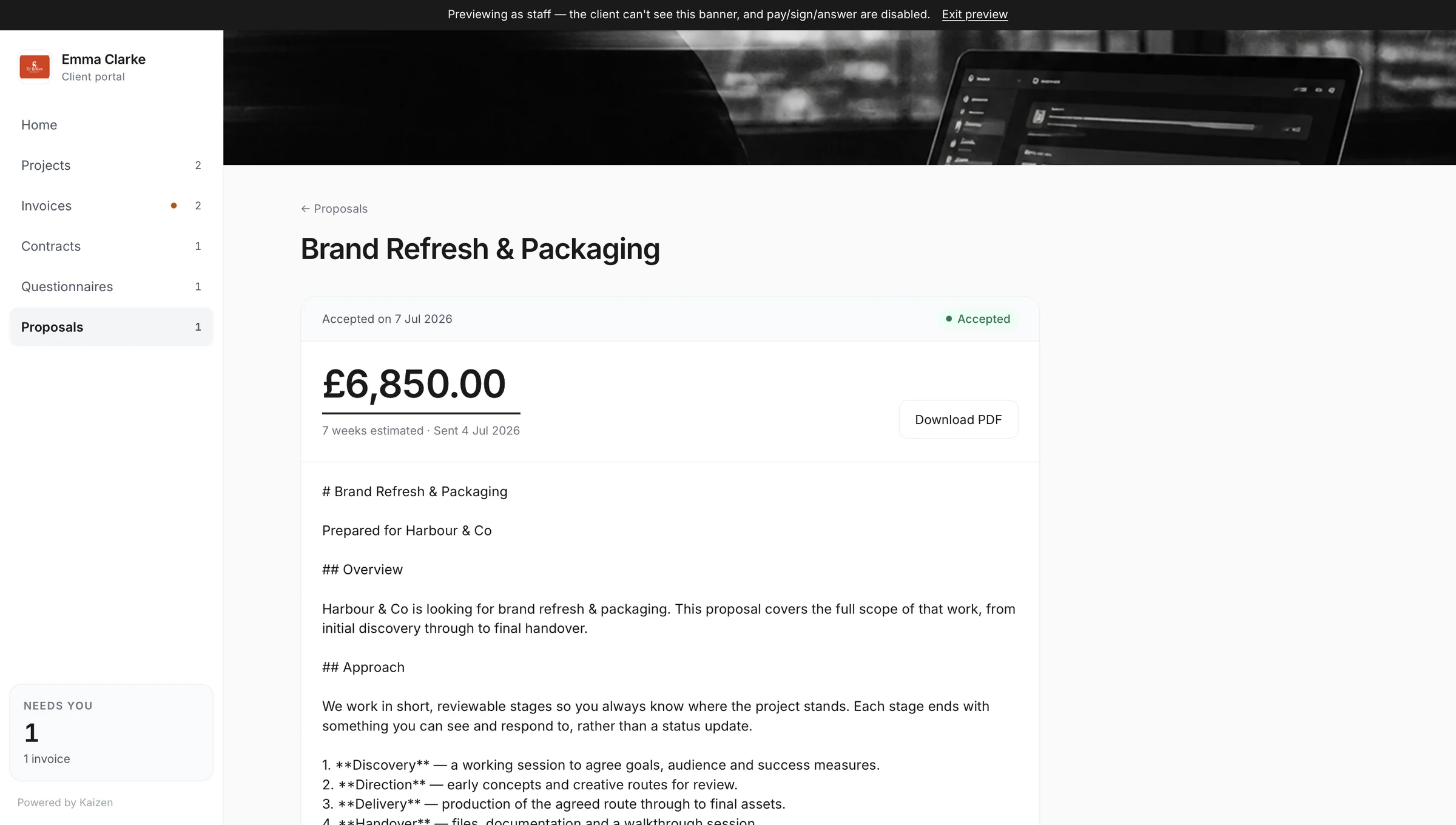
View, download and accept proposals
Proposals appear once sent. Your client can read it, download it, and accept it from the portal, which is also how the proposal moves the work forward on your side.
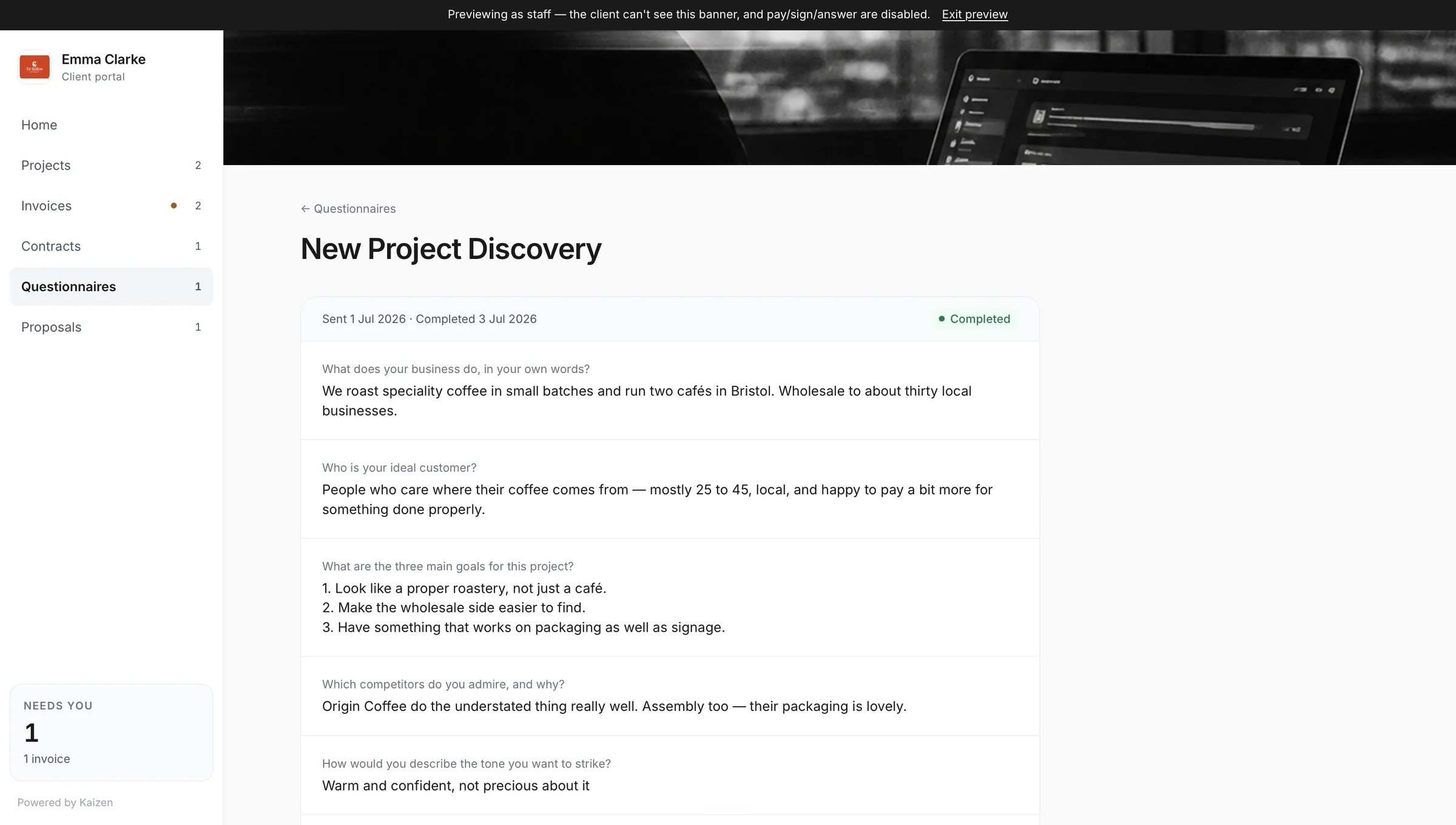
Complete questionnaires, then read them back
Outstanding questionnaires show up with a clear prompt to complete them. Once answered, the client can open them again and read back what they said, so nobody has to ask “what did we agree on this?” six months later.
Send you files
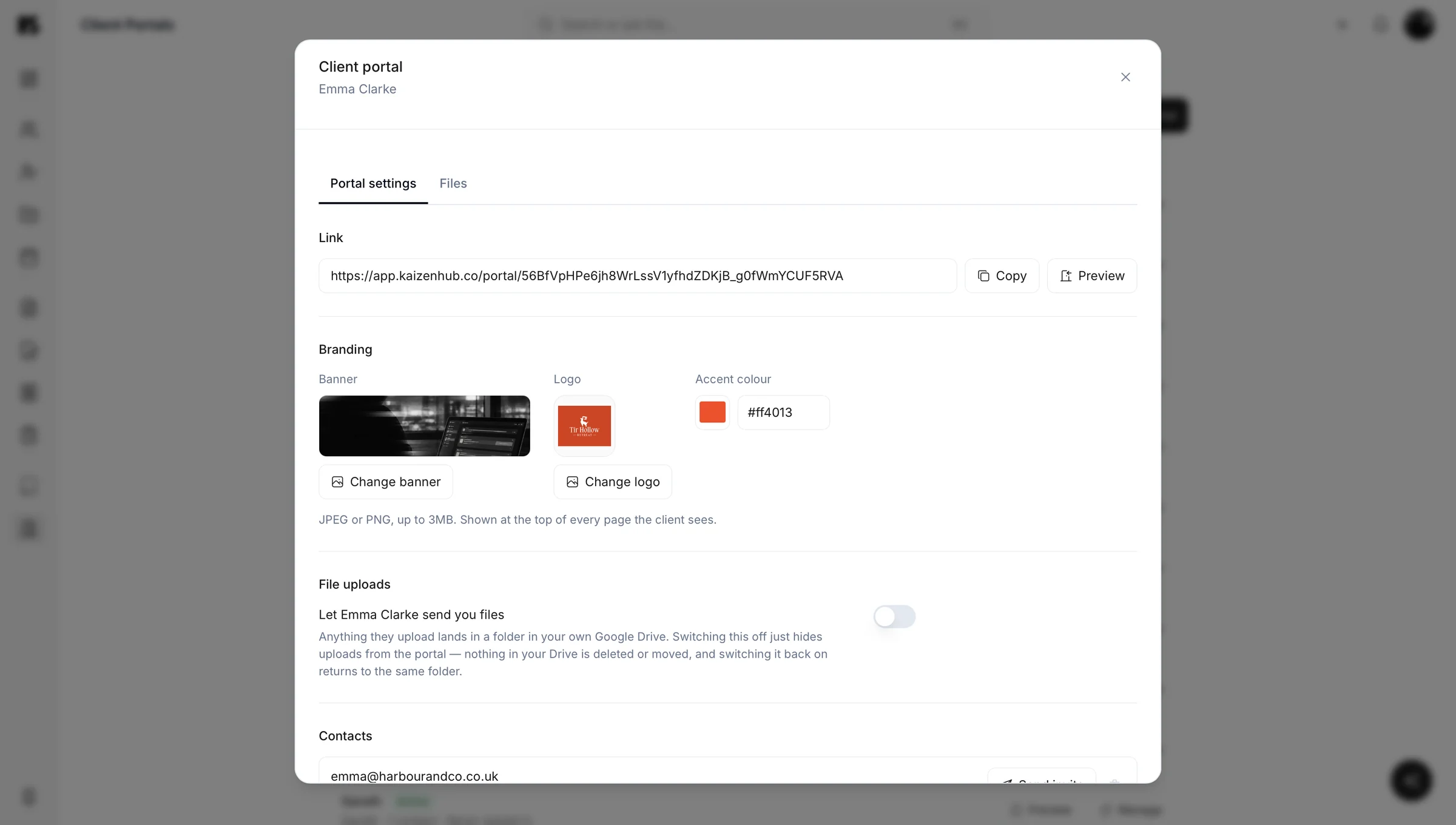
Switch on uploads for a client and they get a Files area to send you everything the job needs, straight into your own Google Drive. No account for them to create, no email attachment limits to work around.
Getting paid
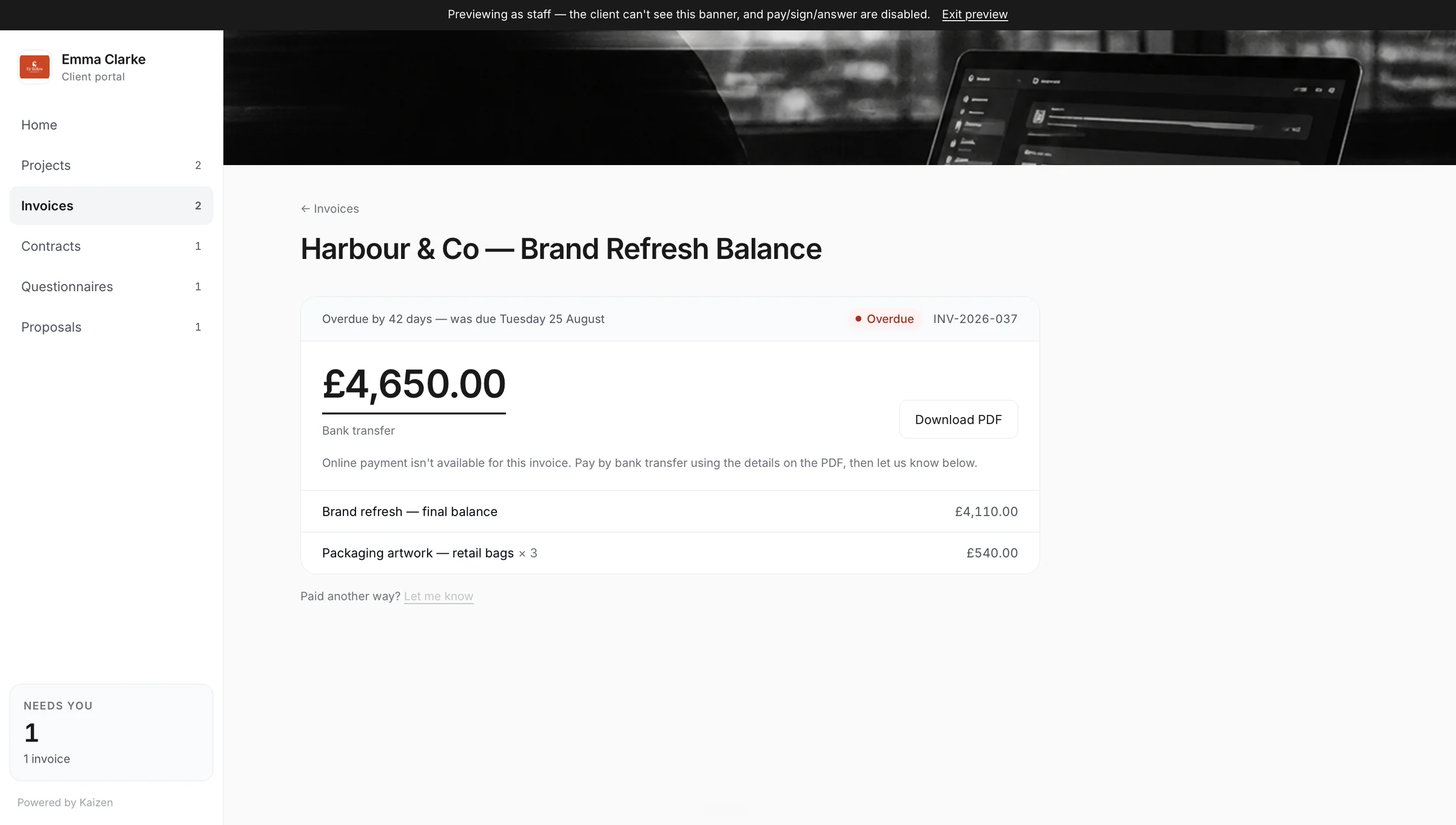
Review and pay invoices
Invoices appear as soon as they are sent, and unpaid ones have a pay button attached. If you have connected Stripe, payment happens instantly, in the portal, without an email back and forth.
Everything, automatically
This is the part worth reading properly. You do not publish anything to the portal.
Send an invoice and it is there. Send a contract for signature and it is there. Send a proposal and it is there. Assign a project and its progress list is there. There is no separate step, no toggle, no “remember to share this with the client” note to yourself.
Drafts never appear. An invoice shows up once it is sent, a contract once it is out for signature, a proposal once it is sent. So you can work in the same account your client is looking into without worrying about what they can see.
It looks like it came from you
Your logo, your client's logo, a banner image, your accent colour and a welcome message.
The portal reads as part of your studio, not a page from a tool you happen to subscribe to.

No AI in front of your client
Kaizen has an AI assistant called Kai, and it stays out of the client portal entirely. Your client never reads AI-generated text. What reaches them is yours.
Files: let clients send you everything in one place
No more chasing logos over email, digging through old WeTransfer links, or asking “can you send that again?” Turn on file uploads for any client and they get a simple Files area in their portal where they can send you everything the job needs.
Everything they upload goes straight into your own Google Drive, filed neatly in a folder for that client.
How it works
Three steps, and the first two only happen once.
- 1Connect your Google Drive in Settings.
- 2Turn on file uploads for any client with one switch.
- 3Your client sends files through their portal, and they land in Kaizen › [client name] in your Drive.
Your client does not need a Google account. They just use their portal as normal.
A client just uploaded a file
Uploaded from the portal, filed automatically in your own Drive.
Everything you need to stay organised
- Folders. Create folders such as Documents, Images or Brand assets, so clients put things in the right place. You and your client can both add them.
- Previews. See thumbnails of photos, PDFs and videos at a glance, and click any file for a large preview with arrows to flick through the rest.
- Easy to navigate. A clear trail at the top shows which folder you are in, and gets you back out in one click.
- Rename and tidy up. Rename files and folders, or remove anything sent by mistake.
- Manage it from Kaizen. See and organise every client's files from their record, without opening Drive separately.
- Works on mobile. Clients can send photos straight from their phone.
Files
Harbour Coffee's portalYour files stay yours
- Stored in your Drive, not ours. Files go straight from your client to your Google Drive. They never sit on Kaizen's servers.
- Kaizen only sees its own folders. It cannot see or touch anything else in your Drive.
- Nothing is lost by accident. Deleted files go to your Google Drive bin, so you have 30 days to get them back.
- Switch it off any time. Turning off uploads hides the Files area from your client. Everything already in your Drive stays exactly where it is.
- Private to each client. Every client only ever sees their own files.
If a file happens to contain personal data, that works the same as anything else you store: you're responsible for it, and Google is processing it on your behalf as your own storage provider, not Kaizen's.
Turned on for this client only. Nothing changes for anyone else.
Good to know
Files can be up to 100MB each, with up to 50 uploads per client per day. Google Drive's free plan gives you 15GB, shared across whatever else you keep there, which comfortably covers most freelance and small agency use.
Google Drive is supported today. Other storage providers, including Dropbox, are planned for the future.
File uploads are on the Companion plan, the same plan that includes the client portal itself.
Getting one running
Open a client record, create their portal, and send the link or the email invite. From then on their invoices, contracts, proposals, projects and questionnaires appear as you send them.
If you want clients to be able to send you files, connect your Google Drive in Settings first. It takes a minute, and you only do it once for your whole account, not per client.
The client portal is on the Companion plan.
Client portal questions
A client portal is a private page where a client can see everything to do with their work with you: their projects, invoices, contracts, proposals and questionnaires. In Kaizen it is created with one click, sent by link or email, and updates itself automatically as you send things.
You create the portal from the client's record and send it as a link or an email invite. The client sets their own password the first time they open it. There is no account for you to set up on their behalf.
Yes, invoices appear in the portal as soon as they are sent, and unpaid ones have a pay button. If you have connected Stripe, the client pays instantly from the portal without any back and forth over email.
Yes, clients can view, download and sign contracts, and view, download and accept proposals, all from their portal. Invoices can be reviewed and paid, and questionnaires can be completed and read back afterwards, but those are not download-based interactions.
No, everything for that client appears automatically. Sending an invoice, sending a contract for signature, sending a proposal, or assigning a project all show up in the portal without a separate publishing step. Drafts never appear.
Yes, each portal is protected by a password the client sets themselves, tied to their own access to that one portal. There is no general account, no ability to browse other clients' information, and no way in without that password.
No, there is no AI anywhere in the client portal. Kaizen has an AI assistant called Kai that helps you on your side of the product, but your client never sees AI-generated text.
The client portal is included on the Companion plan. It is not part of the free Basic plan.
Yes, turn on file uploads for any client and they get a Files area in their portal to send you documents, images and anything else the job needs. They do not need a Google account or any account beyond their portal login.
Every file goes straight from your client into your own Google Drive, filed in a folder for that client. Files never sit on Kaizen's servers, and Kaizen only has access to the folders it creates, not the rest of your Drive.
Yes, you connect your own Google Drive once in Settings before turning uploads on for any client. Your client does not need a Google account of any kind; they just use their portal as normal.
Yes, files can be up to 100MB each, with up to 50 uploads per client per day. Google Drive's free plan includes 15GB of storage, shared across anything else you keep in that Drive, which is normally enough for client files.
Turning off file uploads hides the Files area from that client's portal, but nothing already in your Google Drive is affected or deleted. You can switch it back on at any time.